Not sure what you're looking for?

Book a call

Hello, Redditor! To say thank-you to our friends from Reddit, we have an exclusive offer. Use code REDDIT to get your first month for £1. Applies to monthly plans only.

Gnu Host is now . See our announcement Zume for more details.

You are on our site Visit our site 

How to access my emails from Gmail

Gmail has discontinued their POP3 import feature as of early 2026. Read this article for more details: https://support.google.com/mail/answer/21289

Zume has built a replacement, free-to-use service called MailPorter.

For a small annual fee you can upgrade to gain additional features such as real-time syncing, which syncs emails in a matter of seconds.

We recommend using IMAP when connecting your account in MailPorter. The following table shows the recommended configuration values to use:

SettingValue
UsernameEmail address (e.g. [email protected])
PasswordEmail password
IMAP ServerServer hostname e.g. server1.xxx.zumedns.com (not mail.yourdomain.com)
Port993
Always use a secure connectionYes

How to create an email account

Creating an email account in cPanel is a simple process that allows you to have a custom email address with your domain name. This guide will walk you through the steps to create a new email account in cPanel.

Step 1: Log in to cPanel

Learn how to log in to cPanel.

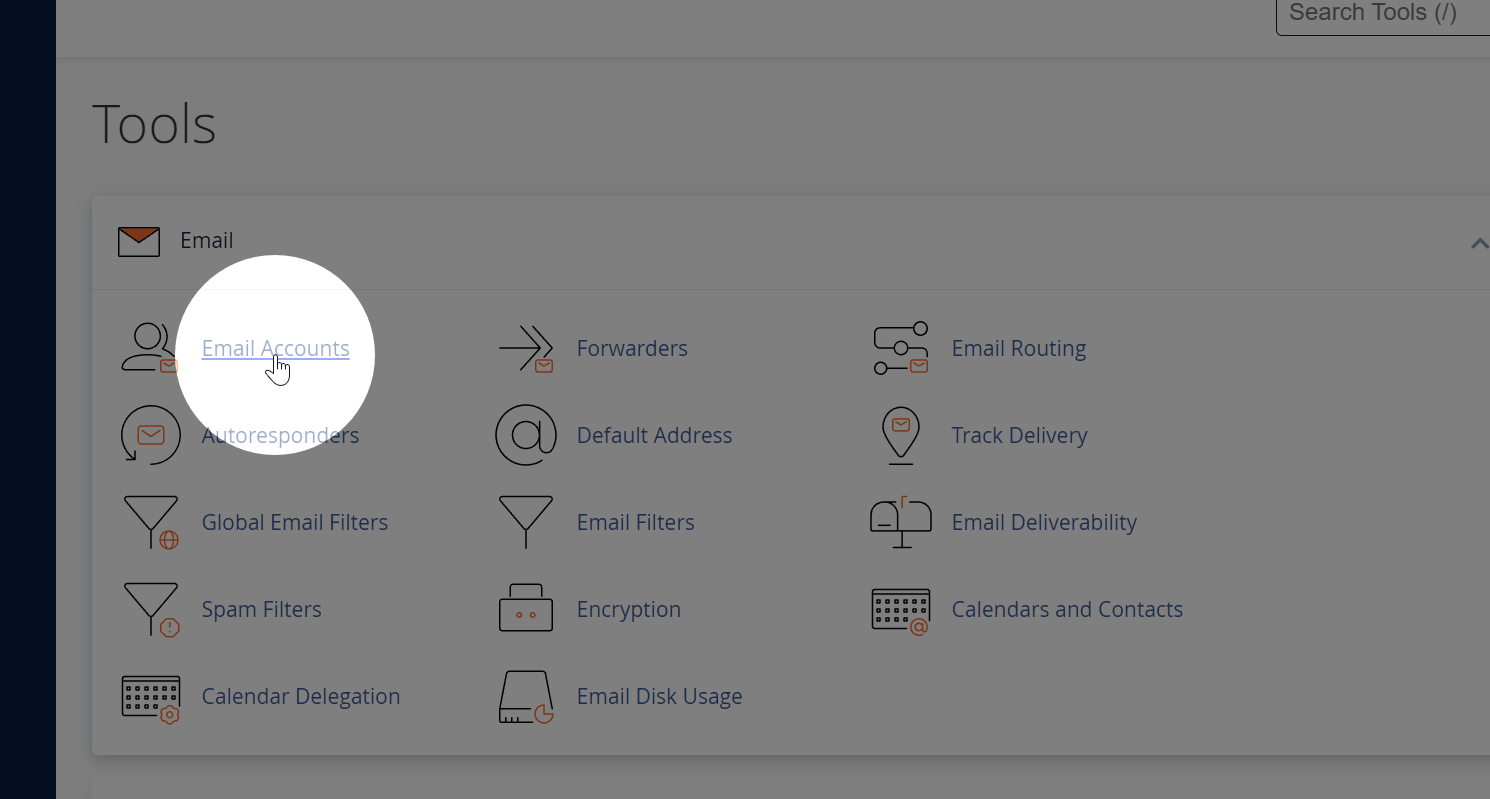
Step 2: Navigate to the Email Accounts Section

Once logged in to cPanel, locate the “Email” section and click on the “Email Accounts” icon. This will open the Email Accounts management page.

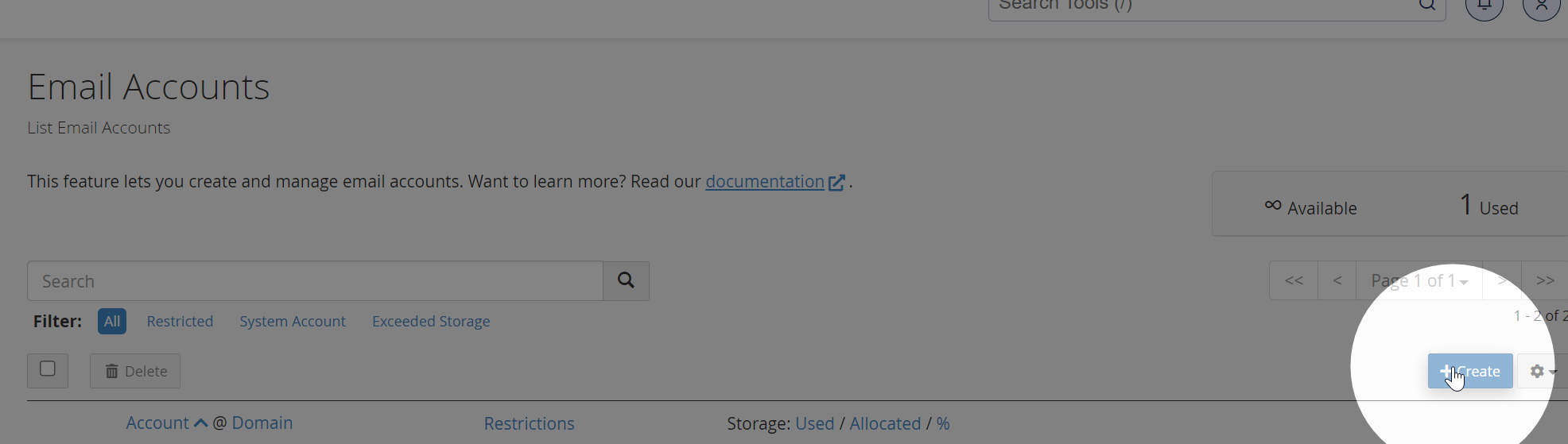
Step 3: Create a New Email Account

On the Email Accounts page, click on the “Create” or “Add Email Account” button. This will open the email account creation form.

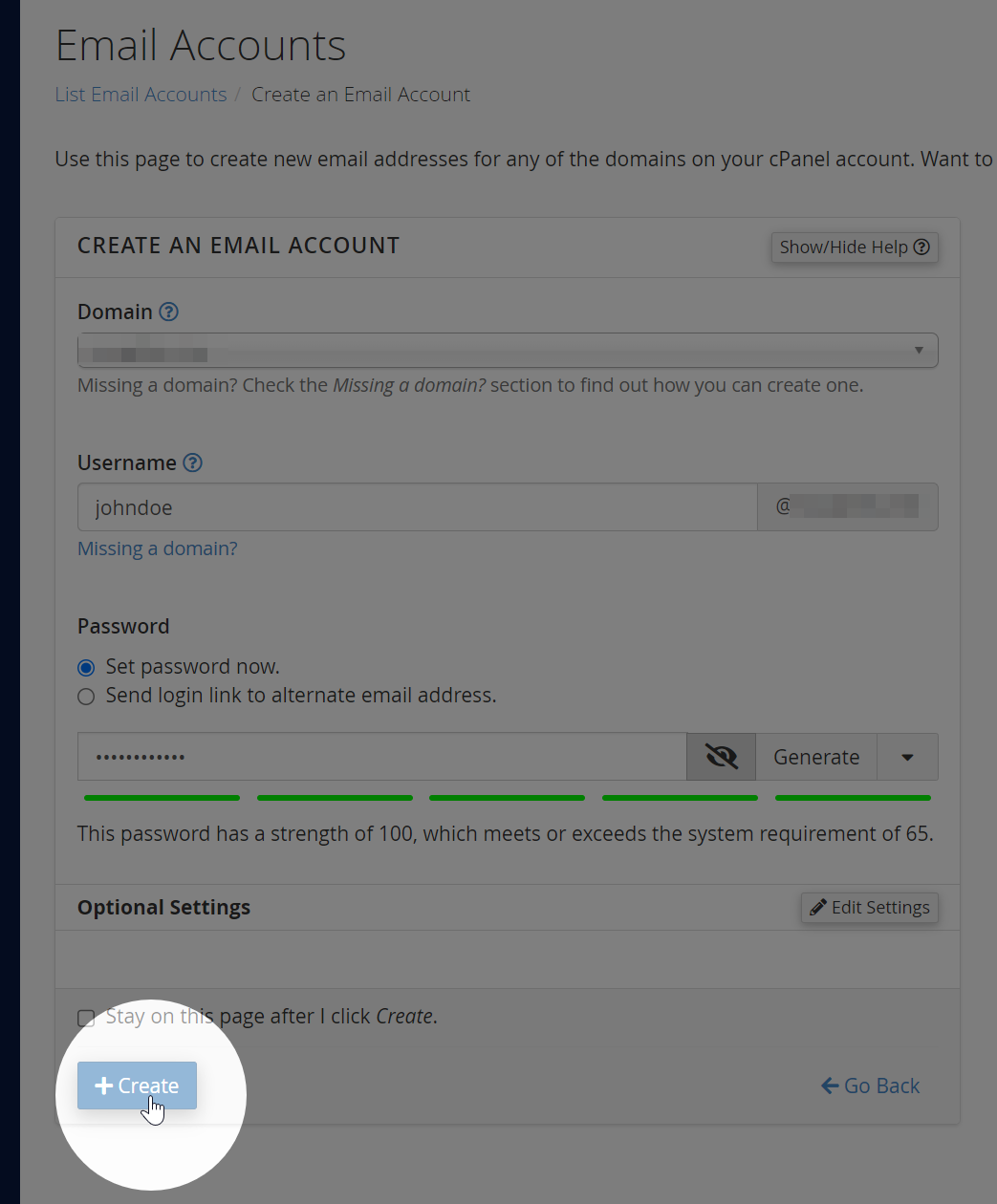
Step 4: Fill in the Email Account Details Fill in the required information for your new email account:

  • Email Domain: Select the email domain from the dropdown. Learn how to add a domain to your cPanel account.
  • Email Username: Enter the desired username for your email account (e.g., yourname).
  • Password: Create a strong password for your new email account. You can use the “Generate” button to create a secure, random password. Be sure to note the password for future reference.
  • Storage Space: Specify the storage space quota for the email account. You can choose between a fixed quota (e.g., 1024 MB) or unlimited storage, depending on your hosting plan and available resources.

Step 5: Create the Email Account

Once you’ve filled in all the required information, click the “Create” button at the bottom of the form. Your new email account will be created, and you’ll see a confirmation message.

Step 6: Access Your New Email Account

Learn how to access webmail

Learn how to configure your email client

How to configure your email client

How to access webmail

cPanel Webmail allows you to access your email accounts directly through a web browser, without the need for a separate email client. In this article, we’ll walk you through the steps to access your cPanel Webmail and manage your email accounts.

Step 1: Log in to cPanel

Learn how to log in to cPanel.

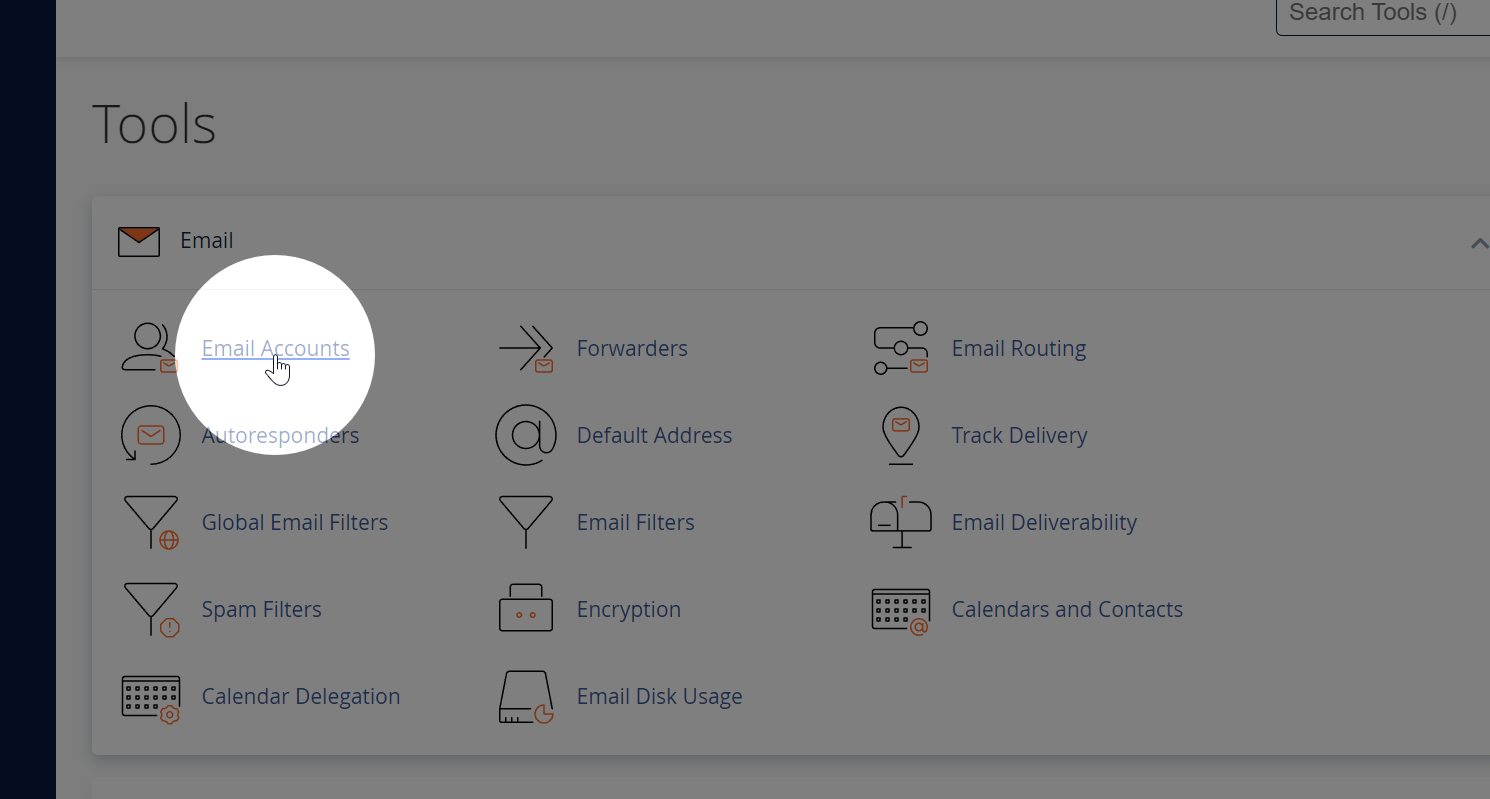
Step 2: Navigate to the Email Accounts Section

Once logged in to cPanel, locate the “Email” section and click on the “Email Accounts” icon. This will open the Email Accounts management page.

Step 3: Locate Your Email Account

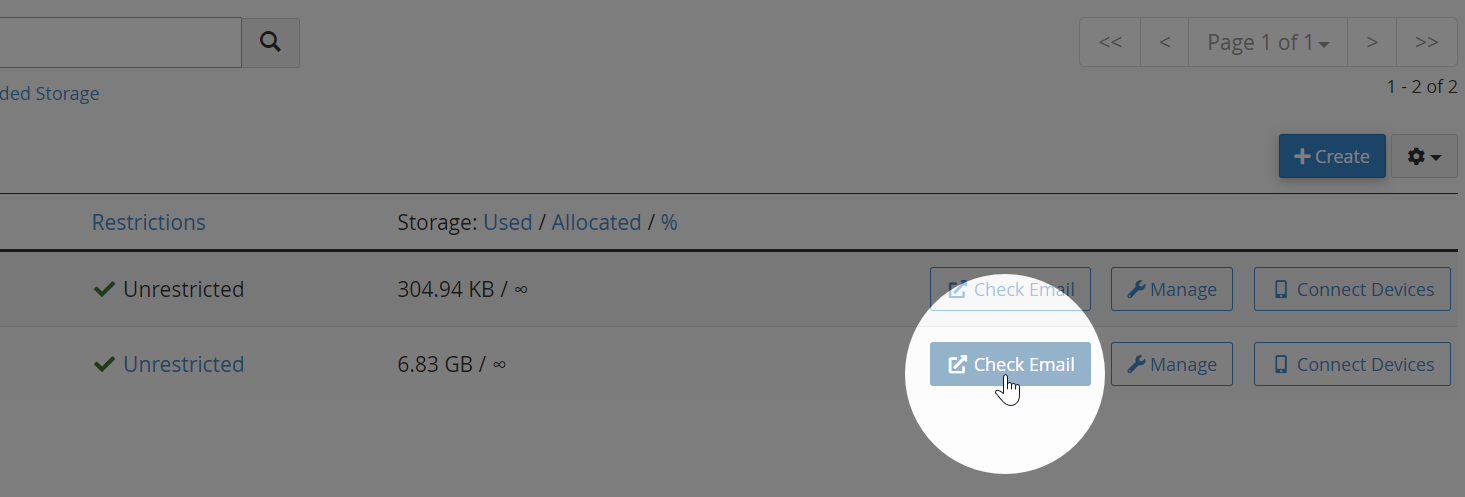
On the Email Accounts page, you’ll see a list of email accounts associated with your domain. Find the email account you wish to access and click on the “Check Email” or “Access Webmail” button next to it. This will open the Webmail login page for that specific email account.

Step 4: Launch Webmail Application

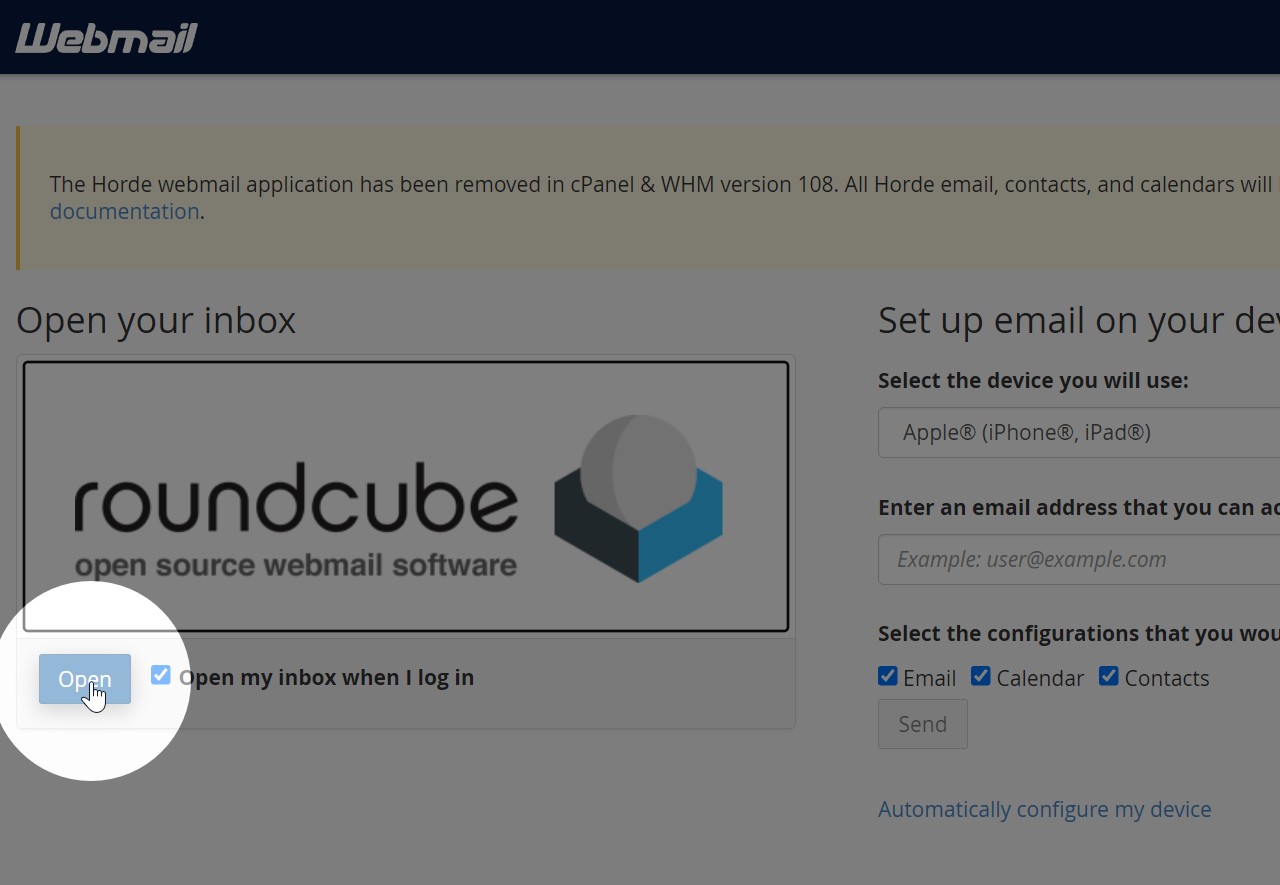
Select the Roundcube webmail link by clicking on its logo or the “Open” button next to it.

Step 6: Manage Your Email

Once inside the Webmail application, you can read, compose, and manage your emails just like you would with any other email client.

Does my hosting include MailChannels? What is MailChannels?

MailChannels is included as standard with all hosting plans. No further configuration is required.

MailChannels is a cloud-based email delivery service that makes sure that your emails are delivered to your recipients’ inboxes. With MailChannels, you get outbound email filtering, email traffic monitoring, and spam prevention features, ensuring that your emails aren’t marked as spam.

If your DNS is not managed by us (using external nameservers), you should add the following SPF record:

LocationTypeValue
example.comTXTv=spf1 a mx include:relay.mailchannels.net ~all

What are the email sending limits?

Our email is built for regular business use. Things like replying to customers, sending invoices, or dealing with orders.

It’s not suitable for newsletters, cold outreach, or sending lots of messages at once. If you’re sending bulk email, even accidentally, it can trigger our filters. When that happens, outgoing mail might be paused without warning.

Is there a limit?

There’s no hard cap, but try to keep it under 50 emails per hour per mailbox. If you’re using email normally, you won’t come close to that.

What should I use for marketing emails?

For anything bulk, use a proper tool. Here are some we recommend:

  • Brevo (good all-rounder for small businesses)
  • MailerLite (simple and affordable)
  • Mailchimp (popular and full-featured)
  • Postmark (best for transactional stuff)
  • Amazon SES (cheap but needs setup, suitable for advanced users)

These services are built for it and will save you hassle.

If you’re not sure what to go for, send us a message. We’re happy to help.

How to view your default email account

The default email account in cPanel is where any un-routed emails will be delivered to by default.